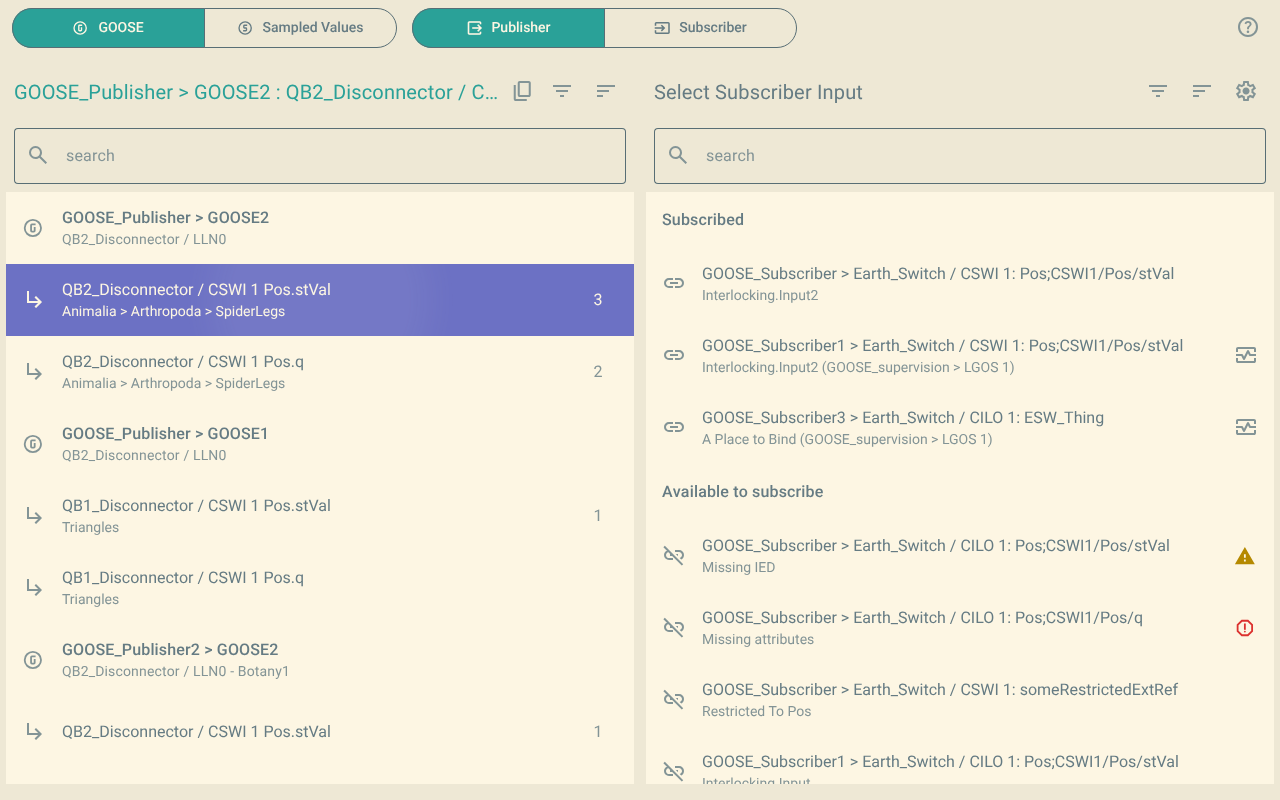
Publisher view
In the publisher view, you select published data first. Then you click the inputs that subscribe to it.
To open the publisher view, click Publisher at the top of the plugin.
1. The lists
The left list shows the control blocks and the data in their data sets.
-
Each control block shows its IED and its name, for example
GOOSE_Publisher > GOOSE2. -
Each data item shows its reference and its descriptions.
-
The number at the right of a data item is the number of inputs that subscribe to it. This number counts all the inputs in the file.
When you select data, the right list shows the inputs in two groups:
- Subscribed
-
The inputs that subscribe to the selected data.
- Available to subscribe
-
The inputs that you can subscribe to the selected data.
The right list does not show the inputs of the IED that publishes the data.
2. Subscribe an input
-
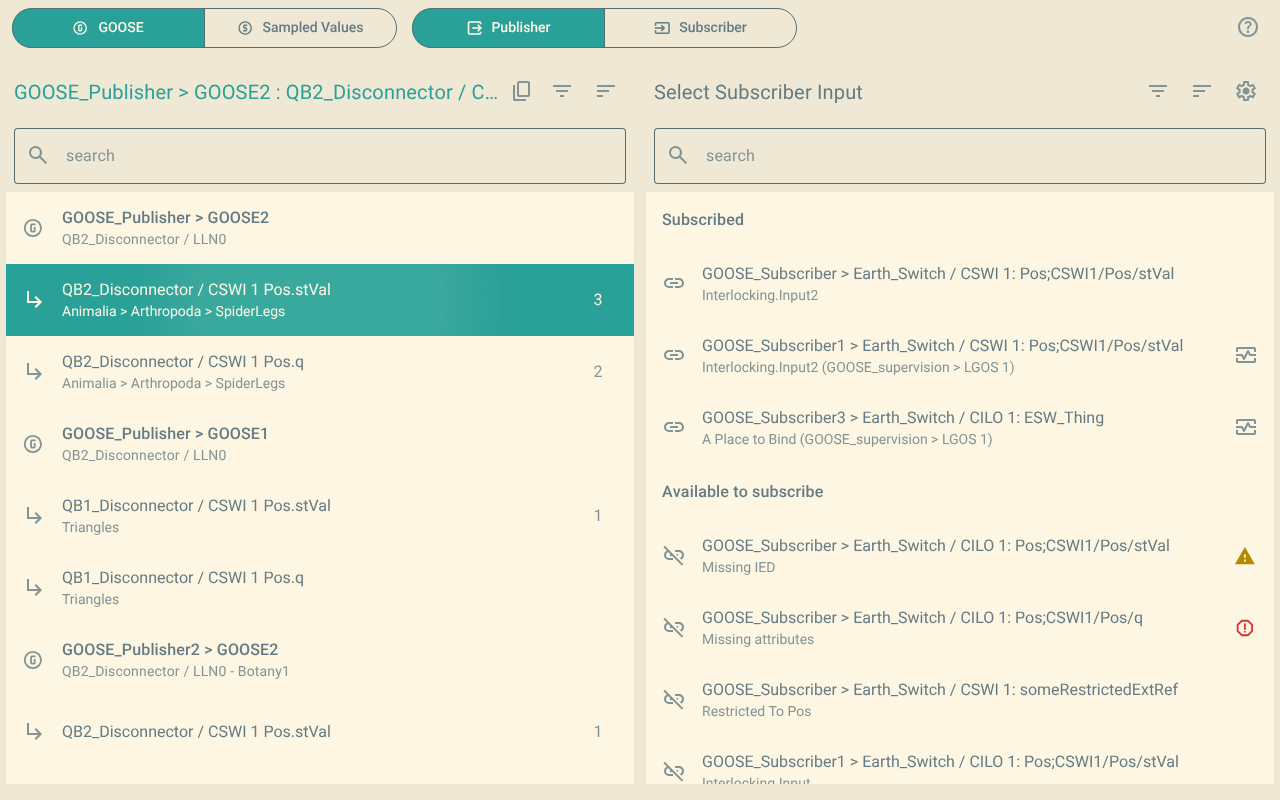
In the left list, click the published data.
-
In the right list, under Available to subscribe, click the input.
The input moves to the Subscribed group. The number at the right of the data increases by one.
If Change Supervision LNs is on, the plugin also adds a supervision for the control block when necessary. The supervision icon shows at the right of the input. For more information, refer to Icons and tooltips.
If a companion plugin is active, it can subscribe more inputs at the same time. For more information, refer to Companion plugins.
3. Unsubscribe an input
-
In the left list, click the published data.
-
In the right list, under Subscribed, click the input.
The input moves to the Available to subscribe group.
If Change Supervision LNs is on, the plugin also removes the supervision when no other input of the IED subscribes to the control block.
To undo a subscription or an unsubscription, use the undo function of OpenSCD. One undo also removes the changes of the companion plugins.
4. Inputs that you cannot subscribe
Some inputs show in grey. You cannot subscribe these inputs to the selected data. The preconfigured attributes of the input do not agree with the data type of the data.
To hide these inputs, use the Non-Matching Preconfigured filter. For more information, refer to Filter, sort and copy the lists.
You also cannot subscribe an input to a data object. Data objects show in grey in the left list.
5. Look at the subscriptions only
To look at the subscriptions without a risk of change, turn on Read-only view.