Settings
The Settings button is above the list of inputs. The settings are the same in the two views, except Auto-increment.
To change a setting:
-
Click Settings.
-
Select or clear the setting.
-
Click Apply.
The plugin keeps the settings in the browser for the next session.
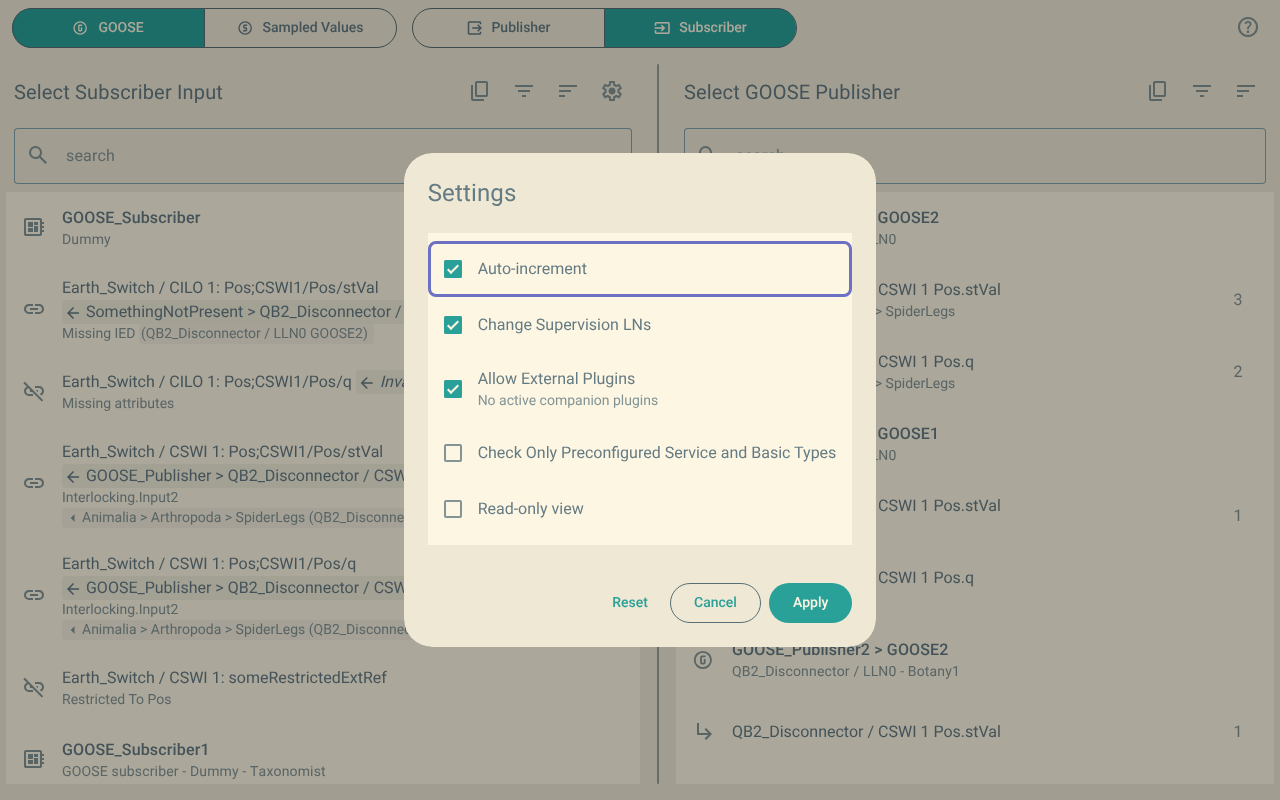
1. Auto-increment
- Default
-
On.
- View
-
Subscriber view only.
After you subscribe an input, the plugin selects the next input in the list. The plugin stops at an input that is already subscribed. For more information, refer to Subscribe many inputs one after the other.
2. Change Supervision LNs
- Default
-
On.
When you subscribe an input, the plugin adds a supervision logical node when the IED does not supervise the control block yet.
It uses LGOS for GOOSE and LSVS for sampled values.
When you unsubscribe the last input of the IED from a control block, the plugin removes the supervision.
When this setting is off, the plugin does not add or remove supervisions.
| Some IEDs do not use their subscriptions without a supervision. Only turn this setting off when you know that the IED does not need supervisions. |
3. Allow External Plugins
- Default
-
On.
This setting turns all the companion plugins on or off.
Below the setting, the menu shows the companion plugins that are active, for example 2 active: NR Electric, SEL.
For more information, refer to Companion plugins.
4. Check Only Preconfigured Service and Basic Types
- Default
-
Off.
Before the plugin subscribes an input, it compares the data with the preconfigured attributes of the input. Usually, it compares the common data class (CDC) and the basic type.
When this setting is on, the plugin compares only the service type and the basic type. It does not compare the CDC.
Use this setting when an input must subscribe to data with a different CDC.
For example, a trip signal from PTRC has the CDC ACT.
An input for it can be preconfigured with the CDC SPS.
Both use the basic type BOOLEAN for general.
5. Read-only view
- Default
-
Off.
In the read-only view, you can select data and inputs, but the plugin does not change the file. A click does not subscribe or unsubscribe an input.
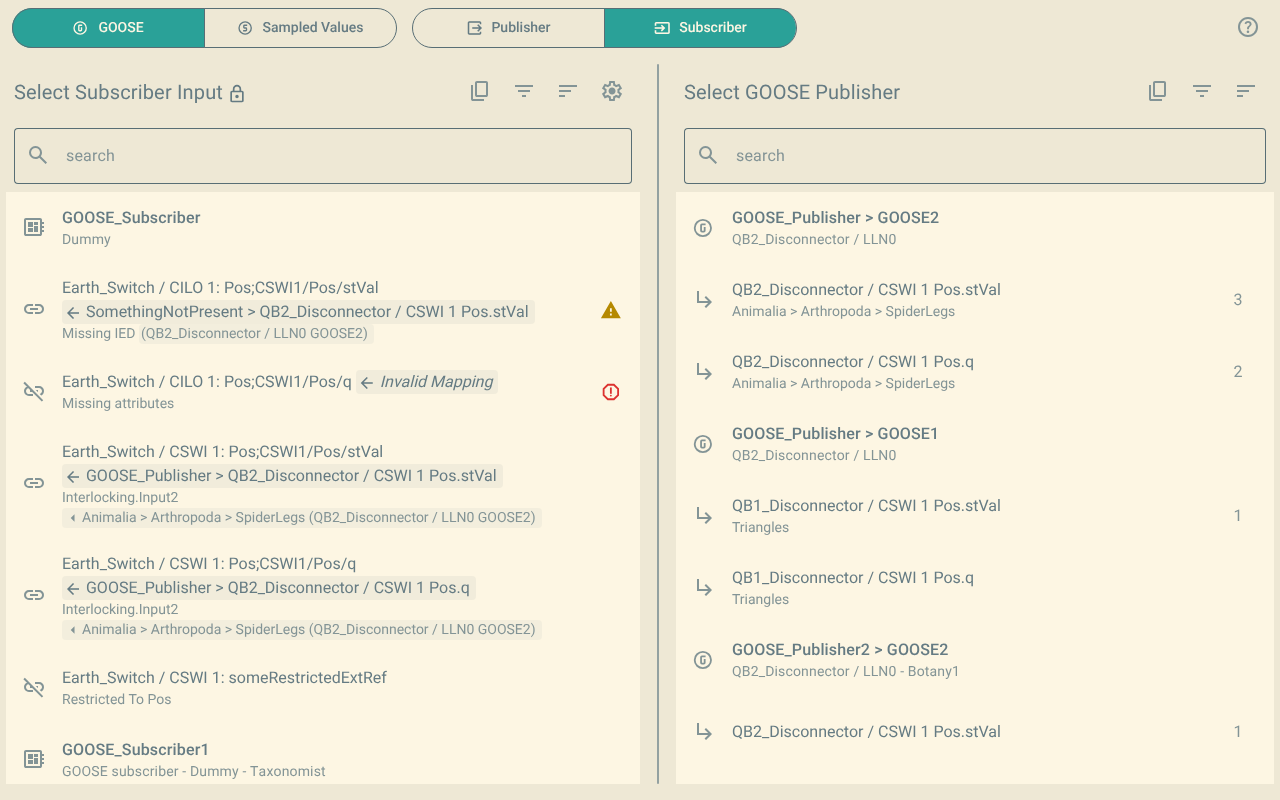
A padlock shows at the title of the left list. The selection shows in a different colour.
6. Companion plugins
The menu shows one item for each companion plugin that is loaded, for example SEL companion plugin. Each item tells what the companion plugin does. Clear the item to turn the companion plugin off. For more information, refer to Companion plugins.