Subscriber view
In the subscriber view, you select an input first. Then you click the published data for it.
To open the subscriber view, click Subscriber at the top of the plugin.
1. The lists
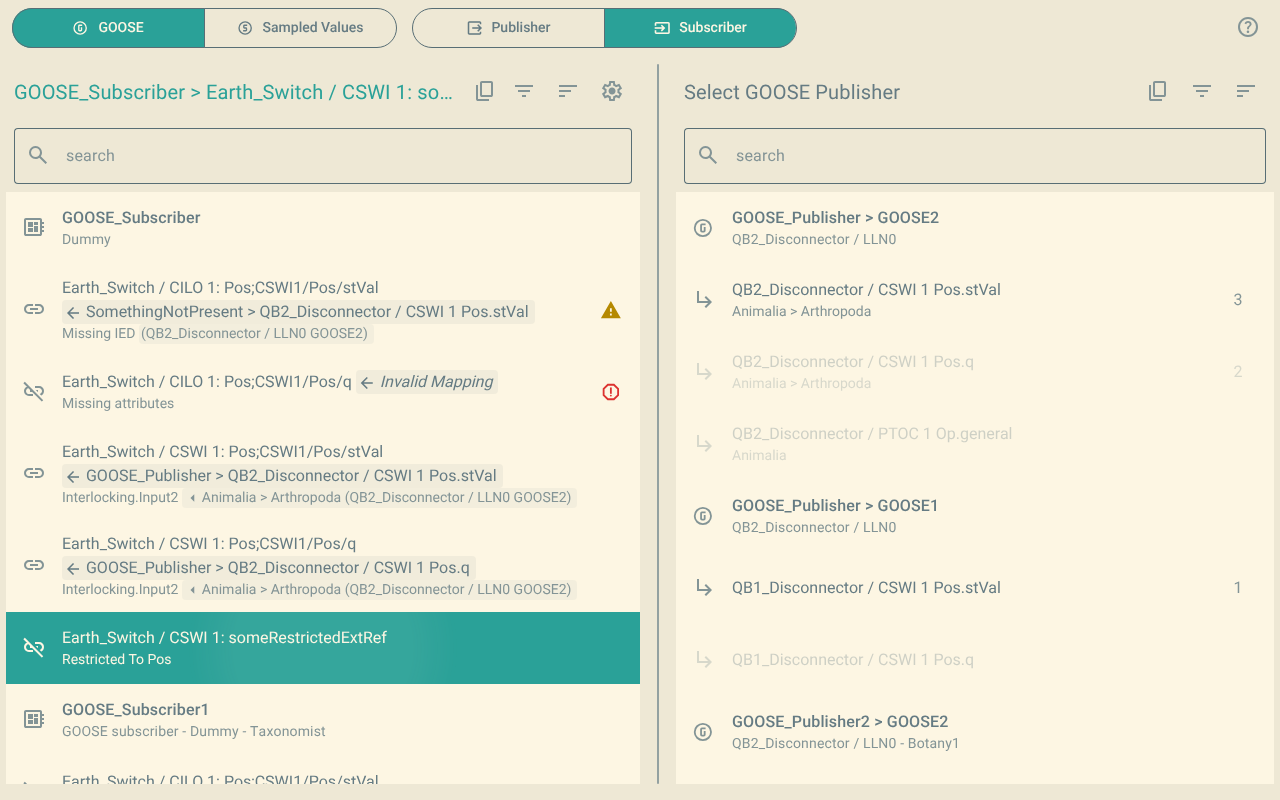
The left list shows each IED that has inputs, and the inputs of the IED. The right list shows the control blocks and the data in their data sets.
Each input shows on two lines:
-
The first line shows the input. When the input is subscribed, the published data follows the input after an arrow (
←), in a shaded area. -
The second line shows the description of the input. When the input is subscribed, the description of the published data, the control block and the supervision follow in a shaded area.
The shaded area always shows the part that comes from the publisher.
2. Subscribe an input
-
In the left list, click the input. The title of the left list shows the input.
-
In the right list, click the published data.
The left list shows the published data with the input.
If Change Supervision LNs is on, the plugin also adds a supervision for the control block when necessary.
When you select an input, some data in the right list shows in grey. You cannot subscribe the input to this data, because the data type does not agree with the preconfigured attributes of the input.
2.1. Subscribe many inputs one after the other
When Auto-increment is on, the plugin selects the next input after each subscription. Thus you can click the published data for each input, one after the other.
Auto-increment stops when the next input is already subscribed. It never removes a subscription. For example, a companion plugin can subscribe the next input at the same time as your input. Auto-increment then stops at that input.
3. Unsubscribe an input
-
In the left list, click a subscribed input.
The plugin removes the subscription at once. The input stays selected, so that you can click other published data for it.
To undo a subscription or an unsubscription, use the undo function of OpenSCD.
| When you only want to look at the subscriptions, turn on Read-only view. Then a click on a subscribed input does not remove its subscription. |
4. Change the width of the lists
Drag the divider between the lists. For more information, refer to Change the width of the lists.