The screen
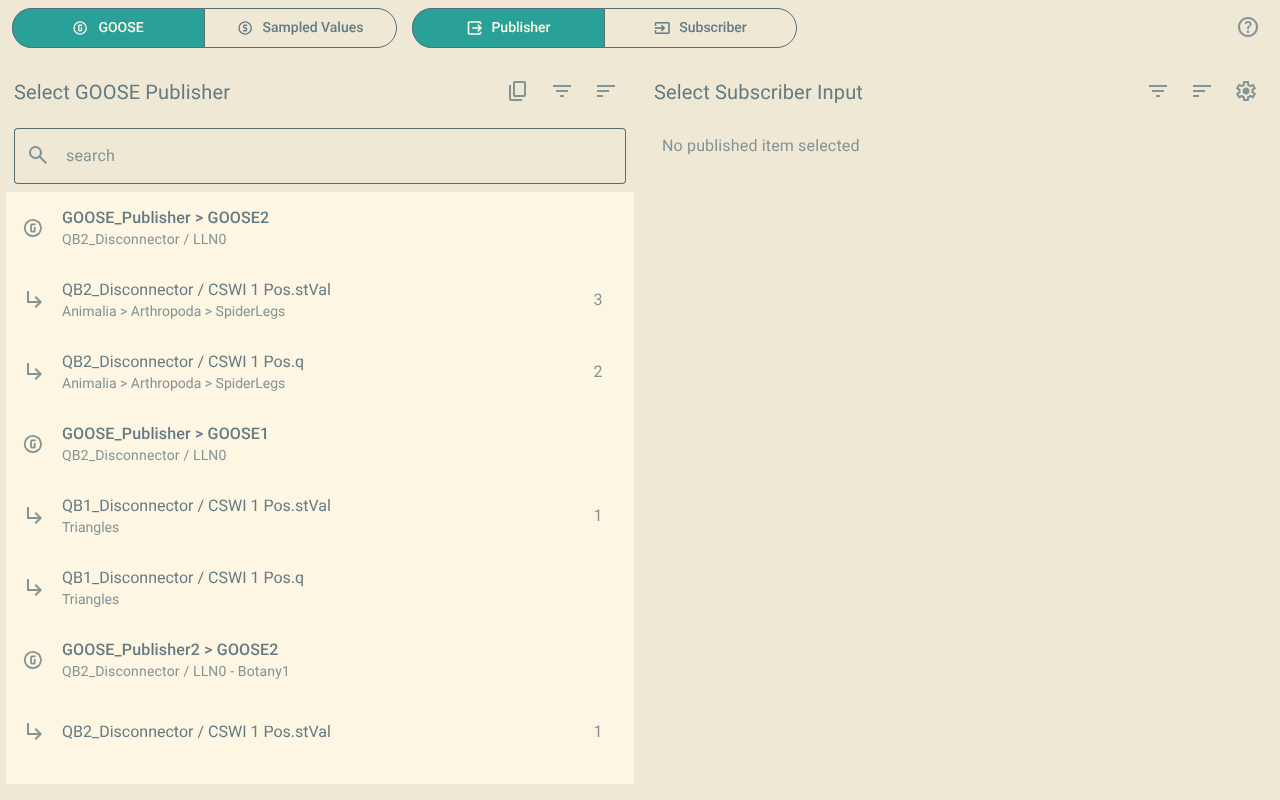
1. Switches
The two switches at the top select what the lists show.
- GOOSE and Sampled Values
-
Select the type of control block. The lists show only the control blocks and the inputs for this type.
- Publisher and Subscriber
-
Select the view. For more information, refer to Publisher view and Subscriber view.
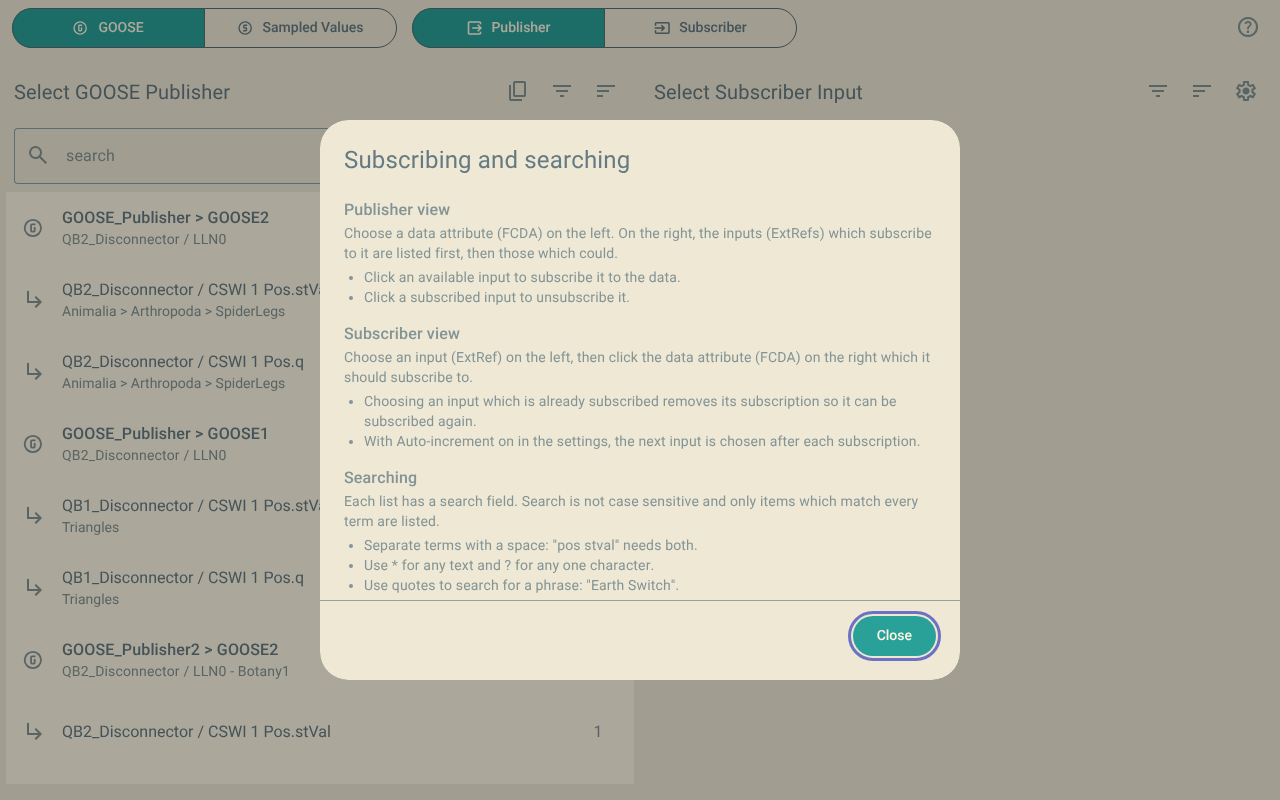
The Help button (a question mark) is at the right of the switches. It opens a short summary of how to subscribe and how to search.
2. Lists
The screen has two lists. In the publisher view, the published data is on the left. In the subscriber view, the inputs are on the left.
Each list has a title, buttons and a search field.
-
The title tells you what to select. When you select an item, the title shows the item.
-
The search field shows only the items that match the text. For more information, refer to Search.
Each list has some of these buttons:
| Button | Function |
|---|---|
Copy to Clipboard as Markdown |
Copies the items that the list shows, as Markdown. For more information, refer to Copy a list. |
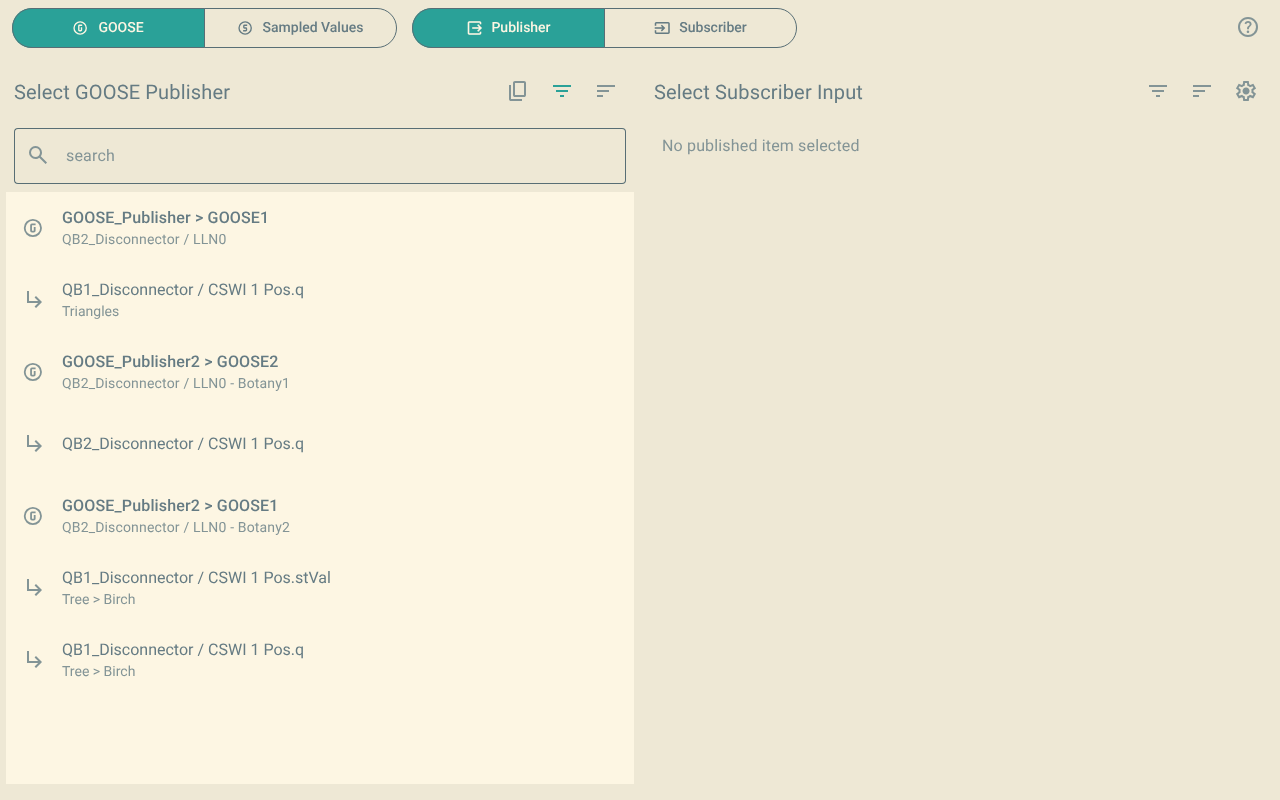
Filter |
Hides some types of item. For more information, refer to Filter, sort and copy the lists. |
Sort |
Changes the order of the items. For more information, refer to Filter, sort and copy the lists. |
Settings |
Changes how the plugin subscribes inputs. This button is on the list of inputs. For more information, refer to Settings. |
When a filter or a sort is not the default, its button shows in colour. Thus you can see that the list does not show all the items, or does not show them in the usual order.
3. Change the width of the lists
In the subscriber view, a divider is between the two lists.
-
To change the width of the lists, drag the divider.
-
You can also select the divider, then push the left or right arrow key.
Each list is at least 20 % of the width. The plugin keeps the position of the divider for the next session.