Connection details
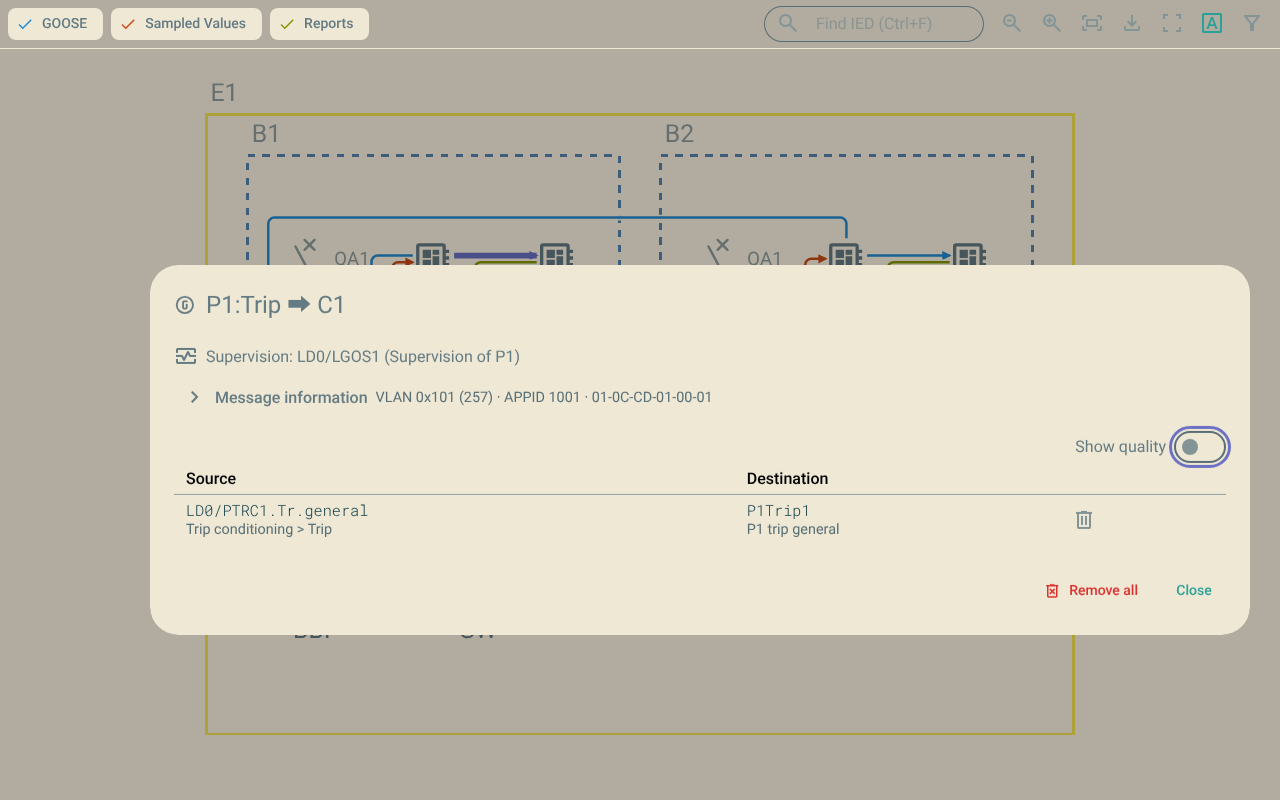
The connection details dialog shows the parameters and the inputs of one connection. You can also remove the inputs from the connection.
1. Open the dialog
To open the dialog, do one of these steps:
-
Click the line of the connection on the map.
-
Push the connection in the list of the filter panel.
2. The title
The title of the dialog is the connection in this form:
<source>:<control block> ⮕ <target>
3. Supervision
When the receiving IED supervises the control block, the dialog shows the supervision.
The line shows the name of the supervision logical node, for example Supervision: LD0/LGOS1.
The plugin uses LGOS for GOOSE and LSVS for Sampled Values.
4. Message information
The Message information section shows the parameters of the connection:
| Parameter | Content |
|---|---|
Data set |
The data set of the control block. |
Configuration revision |
The configuration revision of the control block. |
GOOSE ID |
The GOOSE identifier ( |
SMV ID |
The Sampled Values identifier ( |
Report ID |
The report identifier ( |
VLAN ID |
The VLAN identifier, for example |
VLAN priority |
The VLAN priority. |
Application ID |
The application identifier ( |
MAC address |
The destination MAC address. |
Minimum time |
The minimum retransmission time. |
Maximum time |
The maximum retransmission time. |
The dialog shows only the parameters that the connection has. Push the section title to open or close it. The plugin keeps this choice for the next session.
5. Quality inputs
Some inputs subscribe to the quality attribute q.
Push the Show quality switch to show or hide these inputs.
The plugin keeps this choice for the next session.
6. Inputs
The table shows the inputs of the connection:
| Column | Content |
|---|---|
Source |
The published data of the input, for example |
Destination |
The internal address of the input, for example |
Each row has a Remove input button at the right. The plugin shows only the inputs that are bound to source data.