Select an IED
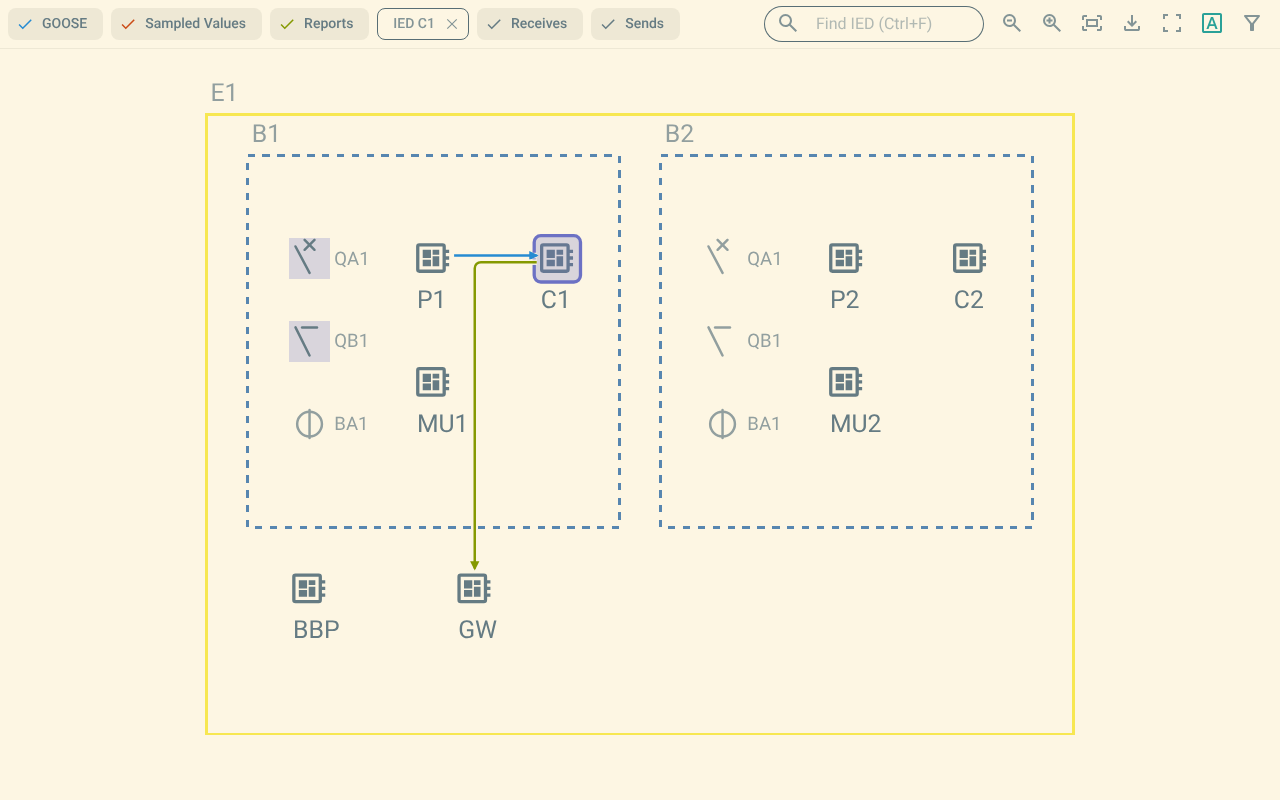
When you select an IED, the map shows only the connections of that IED. The plugin also highlights the primary equipment that is allocated to the IED.
1. Select an IED
To select an IED, do one of these steps:
-
Click the IED symbol on the map.
-
Push the Tab key until the IED is selected, then push Enter or the space bar.
The toolbar shows the IED name. The map shows only the connections of the IED.
2. Receives and sends
An IED both receives and sends connections. Use the Receives and Sends buttons to show one direction only.
-
Push Receives to show or hide the connections that the IED receives.
-
Push Sends to show or hide the connections that the IED sends.
A button shows in colour when its direction is shown. The plugin shows the connections of both directions by default.
3. Highlighted equipment
The plugin highlights the primary equipment with a logical node that is allocated to the selected IED. The highlight uses the highlight colour of the theme.
4. Clear the selection
To clear the selection, do one of these steps:
-
Push the Escape key.
-
Push the cross on the IED name in the toolbar.
The plugin shows the connections of all IEDs again.
5. Filter the options of the selected IED
When an IED is selected, the filter panel offers only the values that the connections of the IED use. For more information, refer to Filter connections.