The screen
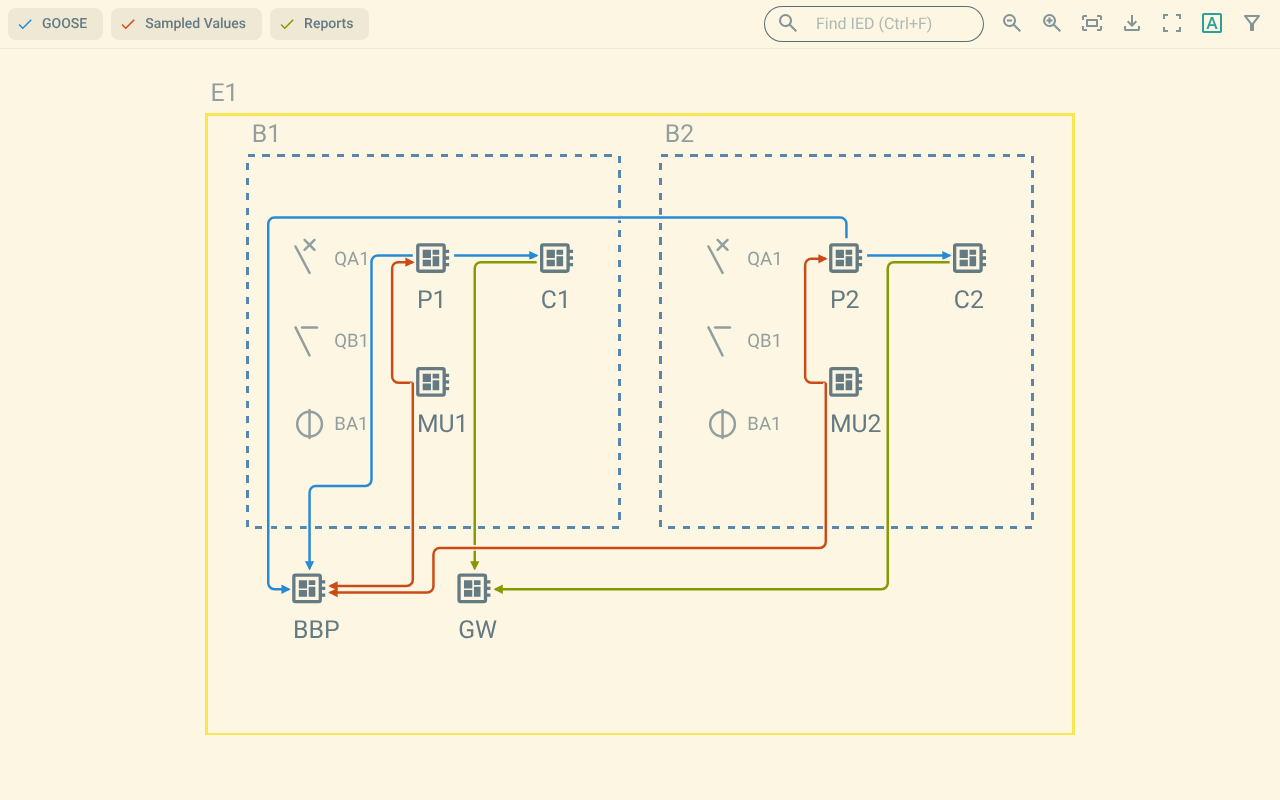
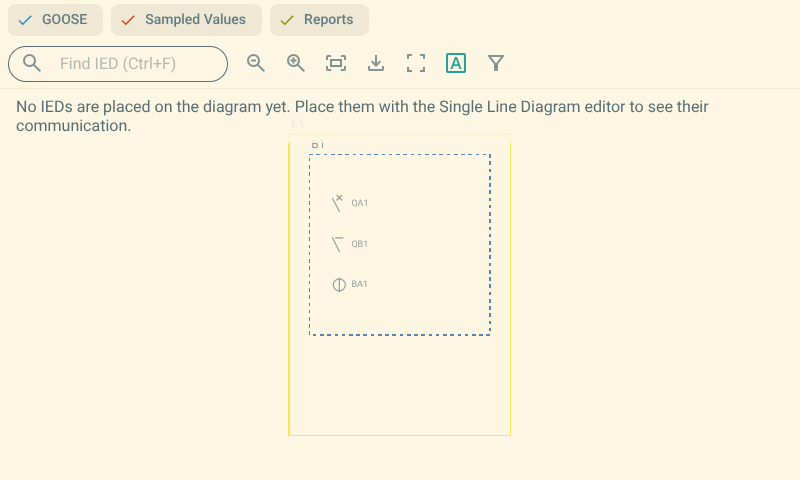
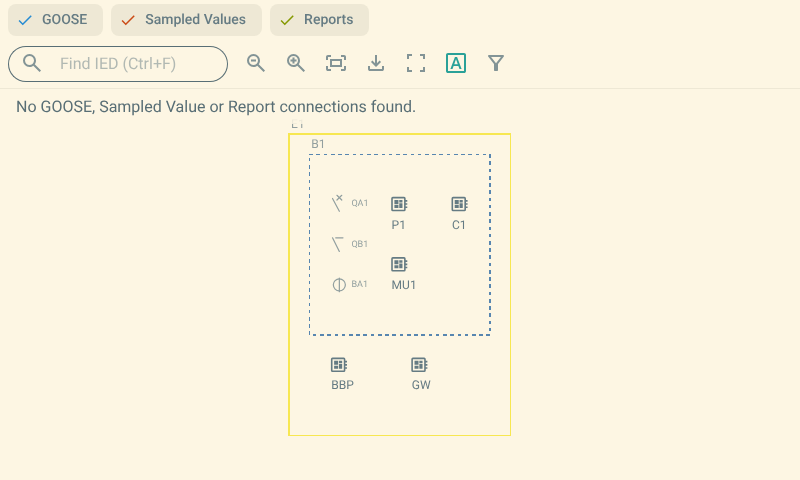
The screen has two parts:
-
The toolbar at the top.
-
The map below the toolbar.
The filter panel appears at the right of the map when you open it.
1. Toolbar
The toolbar has these controls, from left to right:
| Control | Function |
|---|---|
Substation |
Selects the substation shown. This control appears only when the file has more than one substation. |
GOOSE |
Shows or hides the GOOSE connections. |
Sampled Values |
Shows or hides the Sampled Values connections. |
Reports |
Shows or hides the Report connections. |
Find IED |
Finds an IED on the diagram. For more information, refer to Find an IED. |
Zoom out |
Shows the diagram smaller. |
Zoom in |
Shows the diagram larger. |
Zoom to fit |
Shows the whole diagram. For more information, refer to Zoom and pan. |
Export image |
Saves the map as a file. For more information, refer to Export images. |
Full screen |
Shows the map and the toolbar on the whole screen. Push Exit full screen to leave full screen. |
Show labels |
Shows or hides the labels of the equipment, bays and voltage levels. |
Filter connections |
Opens or closes the filter panel. For more information, refer to Filter connections. |
When you select an IED, the toolbar also shows the IED name and the Receives and Sends buttons. For more information, refer to Select an IED.
The Filter connections button shows a number when filters are active. The number is the count of the active filter criteria.
2. Map
The map shows the single line diagram of one substation. The plugin draws the connections on top of the diagram.
The primary diagram is slightly faded. Thus the IEDs and the connections are easier to see.
When the plugin searches the connection routes, it shows the message Optimising connection routes….
The plugin first shows a preview of the routes.
Then it replaces the preview with the searched routes.