The map
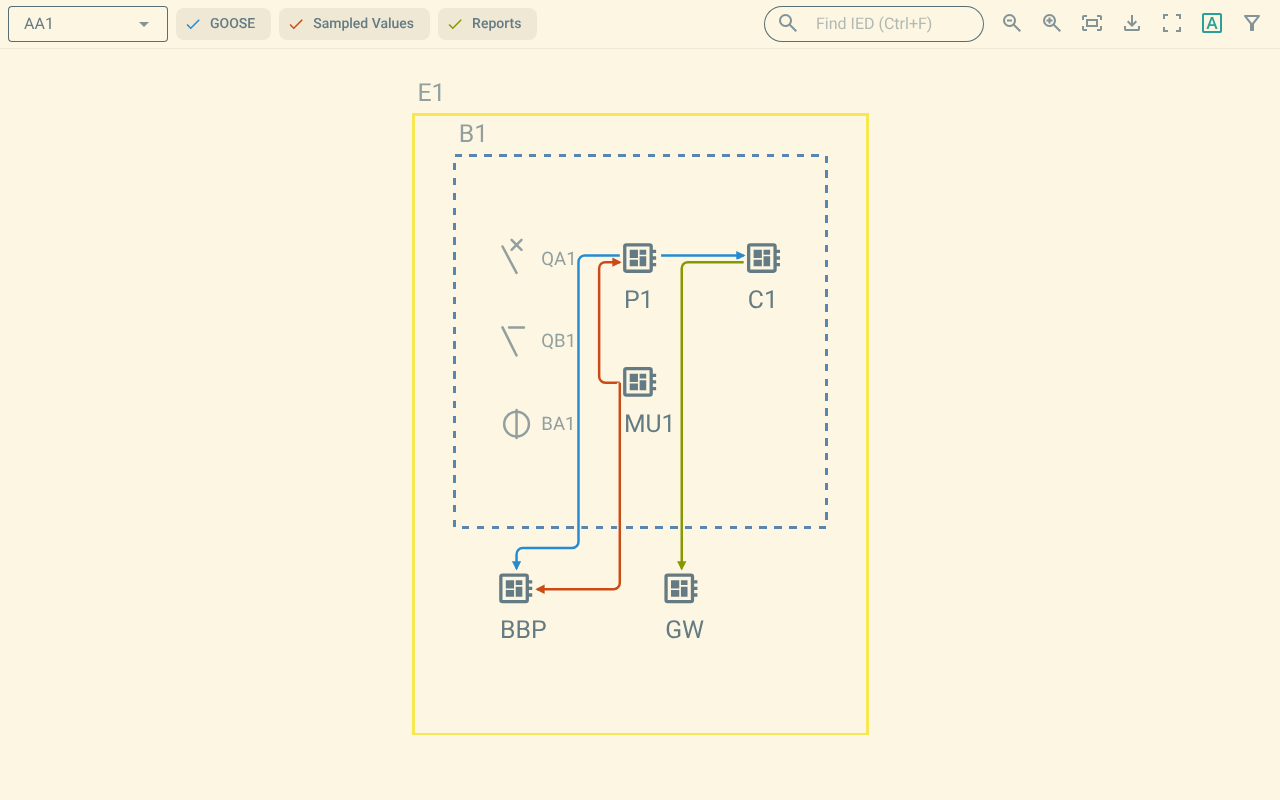
The map shows the single line diagram of one substation. It draws the GOOSE, Sampled Values and Report connections between the IEDs on the diagram.
1. Connection lines
The plugin draws one line for each connection. The line starts at the publishing IED and ends at the receiving IED. An arrow marks the receiving IED. A light band under each line keeps the line visible where lines cross.
Each service has its own colour:
| Service | Colour |
|---|---|
GOOSE |
Blue |
Sampled Values |
Orange |
Reports |
Green |
The colours follow the OpenSCD theme. A distribution can change them. For more information, refer to Theming.
The plugin draws a connection only when both IEDs are on the shown substation. The plugin routes the lines around the IED and equipment symbols, the labels and the busbars. Lines that share a path run side by side.
2. Show and hide services
The toolbar has one button for each service. Each button shows the icon of its service.
-
Push GOOSE to show or hide the GOOSE connections.
-
Push Sampled Values to show or hide the Sampled Values connections.
-
Push Reports to show or hide the Report connections.
A button shows in colour when its service is shown. The plugin draws the connections again after each change.
3. Labels
Push Show labels to show or hide the labels of the equipment, bays and voltage levels. The plugin keeps this choice for the next session.
4. Substations
The map shows one substation at a time. When the file has more than one substation, the toolbar shows a Substation list. Select a substation in the list.
To step to the next or previous substation, use the keyboard. For more information, refer to Keyboard shortcuts.
5. Zoom and pan
To zoom the diagram, do one of these steps:
-
Turn the mouse wheel. The plugin zooms around the pointer.
-
Push Zoom in or Zoom out.
-
Push + or -.
The plugin zooms between a minimum and a maximum size.
To pan the diagram, drag with the left or middle mouse button.
To fit the whole diagram into the view, do one of these steps:
-
Push Zoom to fit.
-
Push 0.
The plugin fits the diagram into the view when you open a file. The diagram stays fitted when the view changes size. The plugin stops fitting the diagram after you zoom or pan.
6. Full screen
Push Full screen to show the map and the toolbar on the whole screen. Push Exit full screen to leave full screen.
7. Pick a connection
To read the details of a connection, click its line. The plugin opens the connection details dialog. For more information, refer to Connection details.
Point at a line to draw it thicker in the highlight colour. When several lines run close together, a click opens a menu. The menu lists the connections at that position, nearest first. Select a connection in the menu.