Apply a stencil
You apply one version of one application at a time. The Apply tab has three steps: Choose application, Assign IEDs and Review and apply.
The plugin does not change the document before you click Apply in the last step.
1. Before you start
-
Open the SCL document in OpenSCD.
-
Make sure that the library has a stencil with the application. For more information, refer to First steps.
-
Make sure that the document has the IEDs for the functions of the application. Each IED must have the manufacturer and the type that the function needs.
-
If a function needs a stencil tag, add the stencil tag to the IED. For more information, refer to Stencil tags.
The plugin finds each control block, data, input and supervision logical node by its reference in the IED.
The reference does not include the IED name, for example LD0 › GC1.
Thus the IEDs must have the same logical devices and logical nodes as the IEDs that the stencil was made from.
2. Choose the application
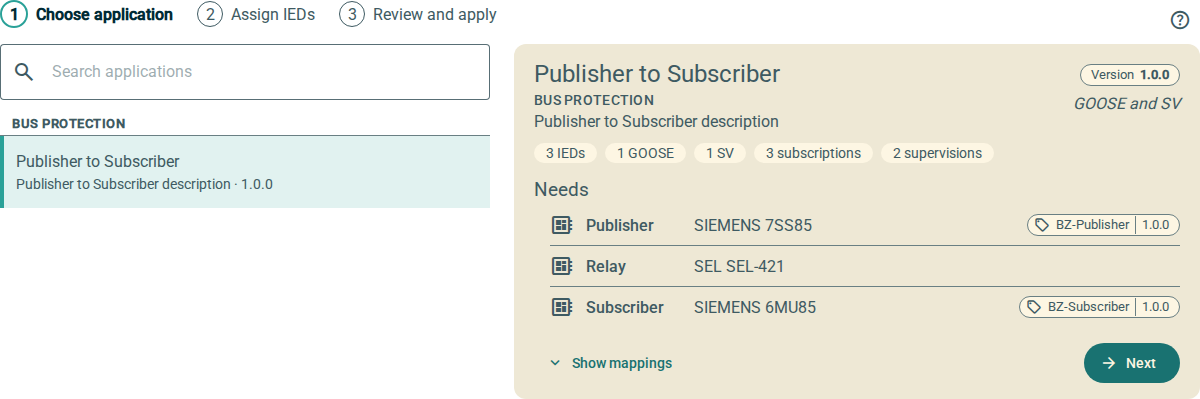
-
If the library has more than one stencil, select the stencil in Selected stencil.
-
To find an application, type a part of its category, name, description or version in Search applications.
The list shows only the applications that contain all the words that you type.
-
Click the application in the list.
The card on the right shows the newest version that is not deprecated. The card shows the counts and the IED that each function needs.
-
If the application has more than one version, select the version in Version.
-
To see the control blocks of the version, click Show mappings.
The table of control blocks shows below the card. For more information, refer to Read the table of control blocks.
-
Click Next.
The list groups the applications by category. It sorts the categories and the applications by name.
To add a stencil file to the library from this tab, click Import stencil… at the top right.
| The list does not show deprecated versions. To see them, set Show deprecated. This switch is available only when the stencil has a deprecated version. |
3. Assign the IEDs
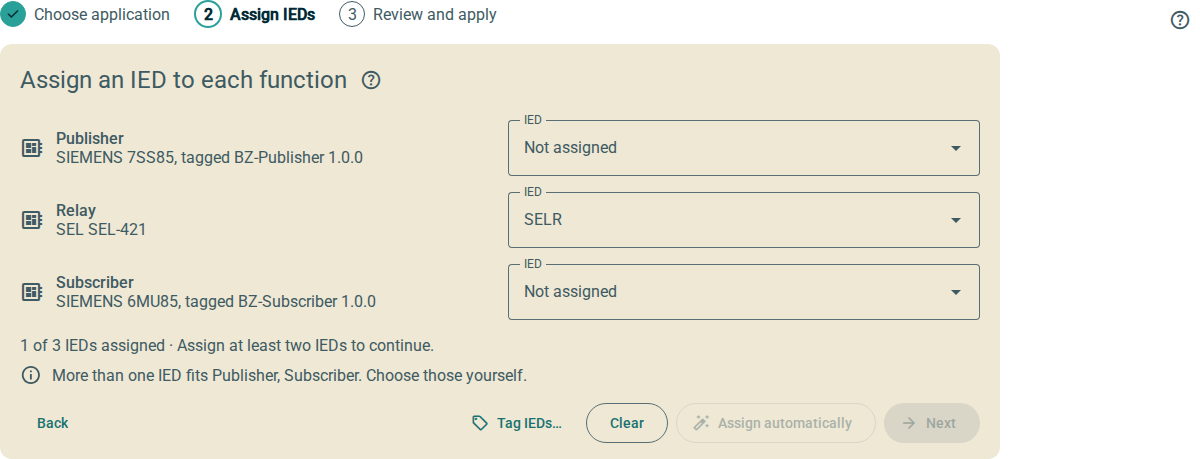
Each function shows a list of the IEDs that can fill it. An IED can fill a function when all these conditions are true:
-
The IED has the manufacturer and the type that the function needs.
-
The IED has the stencil tag that the function needs, if the function needs one.
-
Another function does not use the IED.
To assign the IEDs, do these steps:
-
For each function, select an IED in IED.
-
As an alternative, click Assign automatically.
The plugin assigns an IED to each function that has only one possible IED. It repeats this until no more functions have only one possible IED. It does not change the IEDs that you selected.
-
Click Next.
You must assign IEDs to at least two functions. You can leave a function without an IED. The plugin then does not apply the control blocks of that function.
Assign automatically is not available when it has no function to assign. Clear removes all the assignments.
3.1. When no IED can fill a function
When no IED can fill a function, the function shows the reason in place of the IED field.
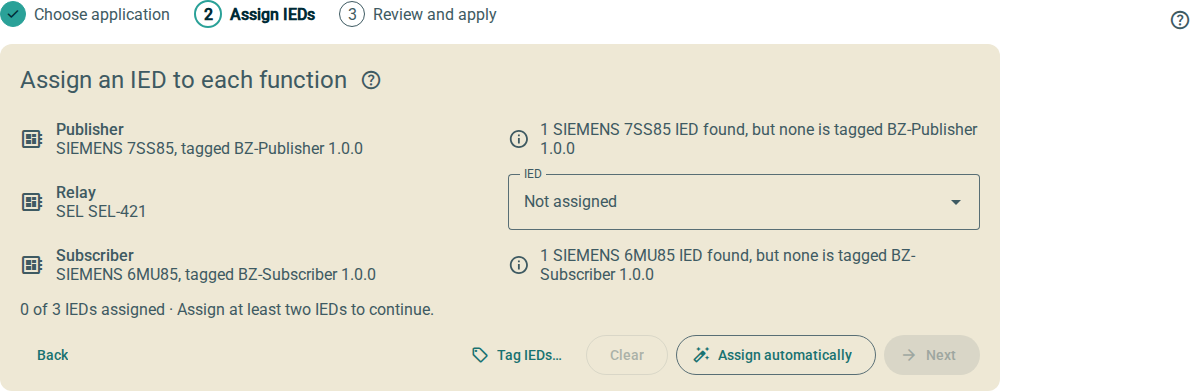
The reasons are:
-
The document has no IED with the manufacturer and the type.
-
The document has IEDs with the manufacturer and the type, but none of them has the stencil tag. To add the stencil tag, click Tag IEDs…. For more information, refer to Stencil tags.
-
Other functions use all the IEDs that can fill the function.
4. Review and apply
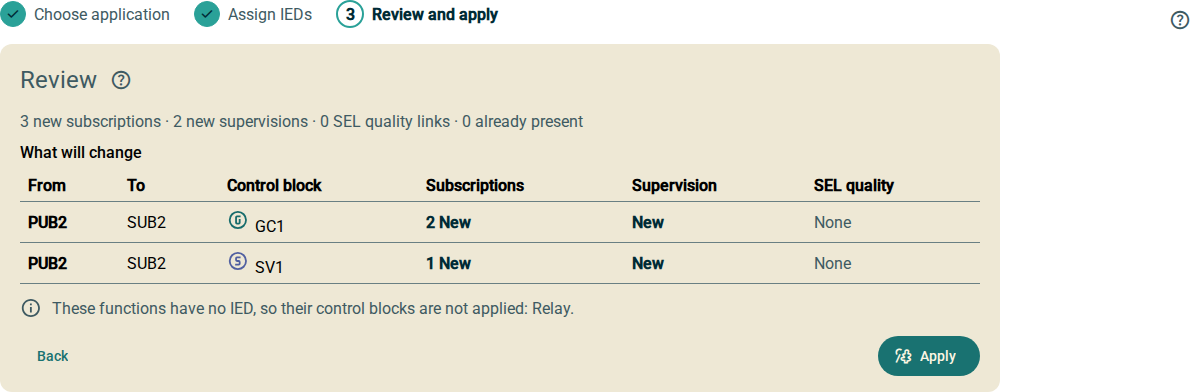
The Review card shows what applying adds to the document. This is a dry run. The document does not change.
-
Read the summary line and the table What will change.
-
Read the notes and the problems below the table.
-
Click Apply.
The plugin applies the changes as one edit. The Applied card shows what the plugin added.
Each row of the table is one control block from one IED to one IED. The columns show the status of each part:
| Status | Meaning |
|---|---|
New |
The plugin adds this part. For subscriptions, the number is the number of inputs that the plugin subscribes. |
Already present |
The document already has this part. The plugin does not change it. |
None |
The stencil does not have this part for the control block. |
Not found |
The plugin cannot find the element in the document. The plugin skips this part. |
Apply is not available when the plugin has nothing to add. When the document already has all the parts, the review shows the message Everything is already in place. There is nothing to apply.
If the document changes after the review, the plugin updates the review. If the document changes when you click Apply, the plugin shows the updated review and does not apply. Read the review again and click Apply again.
4.1. Problems in the review
The list These could not be found and will be skipped shows each element that the plugin cannot find. The plugin applies the other parts. Examples are:
-
The IED does not have the control block, the data or the input at the reference in the stencil.
-
The IED does not have the supervision logical node at the reference in the stencil.
-
One supervision logical node is used for more than one control block.
-
The supervision logical node cannot accept the control block. The message tells you to check that the IED has a free
LGOSorLSVSinstance. -
The subscribing IED has
noIctBinding="true"in itsClientServices, and the plugin must create an input. For more information, refer to What applying creates.
The text of these messages is in English only.
4.2. Inputs that are already subscribed to another source
An input can already be subscribed to a source that is different from the source in the stencil. The review shows these inputs in a table. The table shows the IED, the input, the current source and the source in the stencil.
When you click Apply, the plugin asks what to do with these inputs.
![A dialog with the title Replace existing subscriptions. It says that 1 input is already subscribed to another source. A table shows the input LD0 › I1[0] of SUB2, which is subscribed to OTHER now. The stencil subscribes it to PUB2 · GC1. The buttons are Cancel, Keep them and Replace them.](_images/apply-conflicts.png)
-
Read the table in the dialog.
-
Click one of these buttons:
-
Replace them: The plugin subscribes each input to the source in the stencil. Earlier versions of the plugin always did this.
-
Keep them: The plugin does not change these inputs. It applies the other parts.
-
Cancel: The plugin does not apply.
-
Keep them is not available when the plugin has nothing else to apply.
The plugin does not check the type restrictions of an input (pDO, pDA, pLN and pServT).
The stencil comes from a configuration that worked.
Earlier versions of the plugin did not check them either.
5. After you apply
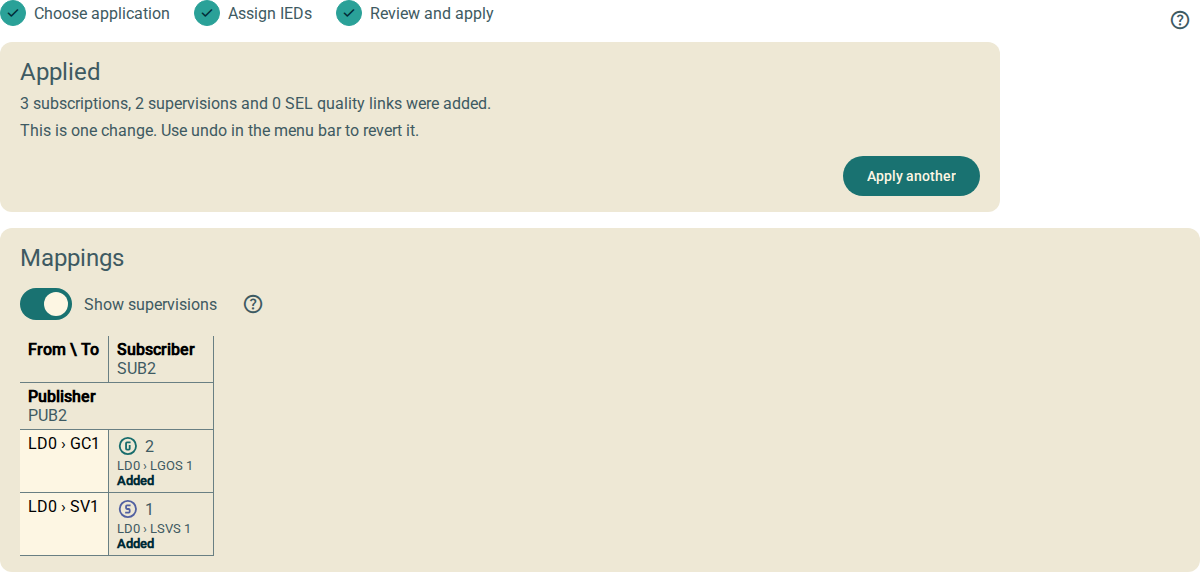
The Applied card shows the number of subscriptions, supervisions and SEL quality links that the plugin added. The Mappings table shows the IED name below each function name. Each cell shows a mark:
| Mark | Meaning |
|---|---|
Added |
The plugin added a part of this control block. |
Already present |
The document already had all the parts of this control block. |
Not fully applied |
The plugin could not find a part of this control block. |
Not applied |
A function of this control block has no IED. |
To remove the changes, use undo in the menu bar of OpenSCD. If you undo, the Applied card says that the document has changed. Click Review again to see the review for the document now.
To apply one more application, click Apply another.
If you apply the same application to the same IEDs again, the plugin finds that all the parts are present. It does not add them again.
6. What applying creates
- Subscriptions
-
The plugin writes the source into the input of the subscribing IED.
-
When the input in the stencil has an
intAddr, the plugin fills in the input with the sameintAddr. -
When the input in the stencil has no
intAddr, the plugin creates a newExtRefin theInputsof the same logical node.
An IED with
noIctBinding="true"in itsClientServicesaccepts only the inputs that its IED tool made. The plugin does not create new inputs on this IED. It shows a problem in the review. -
- Supervisions
-
The plugin uses the supervision logical node at the reference in the stencil, for example
LD0 › LGOS 1. It sets this logical node to monitor the control block. - SEL message quality
-
For SEL relays, the stencil can record a message quality input for a GOOSE control block. The plugin links this input to the control block.