First steps
When the library is empty, the Apply tab shows three buttons to start.
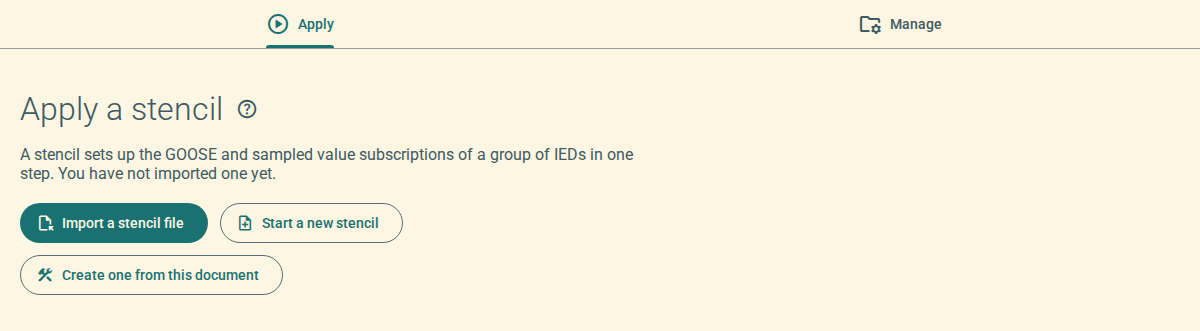
1. Import a stencil file
Use this procedure when you have a stencil file from a colleague or from an earlier project.
-
Open the SCL document in OpenSCD.
-
Open the Stencil plugin.
-
Click Import a stencil file.
-
Select the stencil file (
.json).The plugin checks the file and adds the stencil to the library. The Apply tab shows the applications of the stencil.
If the file is not a valid stencil, the plugin shows the problems in a message and does not add the stencil.
2. Start a new stencil
Use this procedure to make a new, empty stencil.
-
Click Start a new stencil.
The plugin opens the Manage tab and the New stencil dialog.
-
Type a Name and a Version for the stencil.
-
Click Create.
The new stencil is the selected stencil.
Then add applications to the stencil. For more information, refer to Create an application from a document.
3. Create a stencil from the open document
Use this procedure when the open document has IEDs that already communicate as you want.
-
Click Create one from this document.
The plugin opens the Manage tab and the capture steps.
-
Do the procedure in Create an application from a document.
The button is available only when a document is open.
4. Where the plugin keeps stencils
The plugin keeps the library in the browser, on this computer. Other browsers and other computers do not show this library. If you clear the data of the browser, you lose the library.
Earlier versions of the plugin kept one stencil in the browser. When the library is empty, the plugin adds that stencil to the library.
To keep a copy of a stencil, or to give it to a colleague, export it. For more information, refer to Export a stencil.