Manage stencils
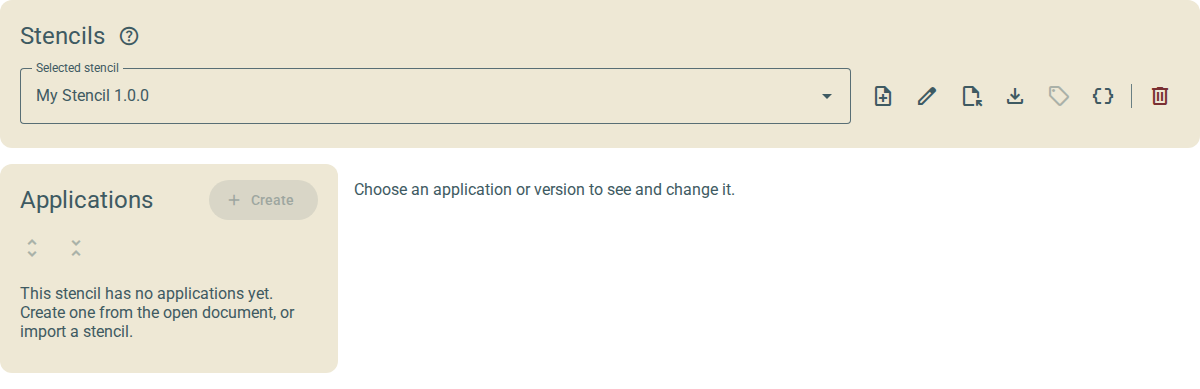
The Manage tab has three parts:
-
The Stencils card, for the stencils in the library.
-
The Applications card, with a tree of the categories, applications and versions of the selected stencil.
-
The cards of the application or the version that you select in the tree.
The plugin saves each change to the library immediately. A change to a stencil does not change a document.
1. The Stencils card
Select the stencil to work on in Selected stencil. The list shows the stencil that you used most recently first.
The icons to the right of Selected stencil are:
| Icon | What it does |
|---|---|
New stencil |
Makes a new, empty stencil. |
Rename stencil |
Changes the name and the version of the selected stencil. |
Import stencil file |
Adds a stencil file to the library. |
Export stencil file |
Saves the selected stencil as a file. |
Tag IEDs in this document… |
Opens the Tag IEDs dialog. Refer to Stencil tags. |
Edit the stencil as JSON |
Opens the JSON editor for the whole stencil. Refer to Edit a stencil as JSON. |
Remove from library (trash can) |
Removes the selected stencil from the library. |
To see the name of an icon, put the pointer on the icon.
1.1. Make a new stencil
-
Click New stencil.
-
Type a Name and a Version.
-
Click Create.
The new stencil is the selected stencil.
Two stencils in the library cannot have the same name and the same version.
1.3. Import a stencil
-
Click Import stencil file.
-
Select the stencil file (
.json).The plugin checks the file. If the file is valid, the plugin adds the stencil to the library and selects it.
If the library has a stencil with the same name, the same version and different content, the plugin asks what to do:
-
Replace: The imported stencil replaces the stencil in the library. You lose the changes that you made to the stencil in the library.
-
Keep both: The plugin adds the imported stencil with a new name, for example
Demo Stencil (2). -
Cancel: The plugin does not import the stencil.
If the content is the same, the plugin selects the stencil in the library.
1.4. Export a stencil
-
Select the stencil in Selected stencil.
-
Click Export stencil file.
The browser saves the stencil as a JSON file.
Export a stencil to keep a copy or to give it to a colleague.
1.5. Remove a stencil from the library
-
Select the stencil in Selected stencil.
-
Click Remove from library.
-
In the dialog, click Delete.
The plugin removes the stencil from the library. The plugin selects the stencil that you used most recently.
You cannot undo this. Export the stencil first to keep a copy.
2. The Applications card
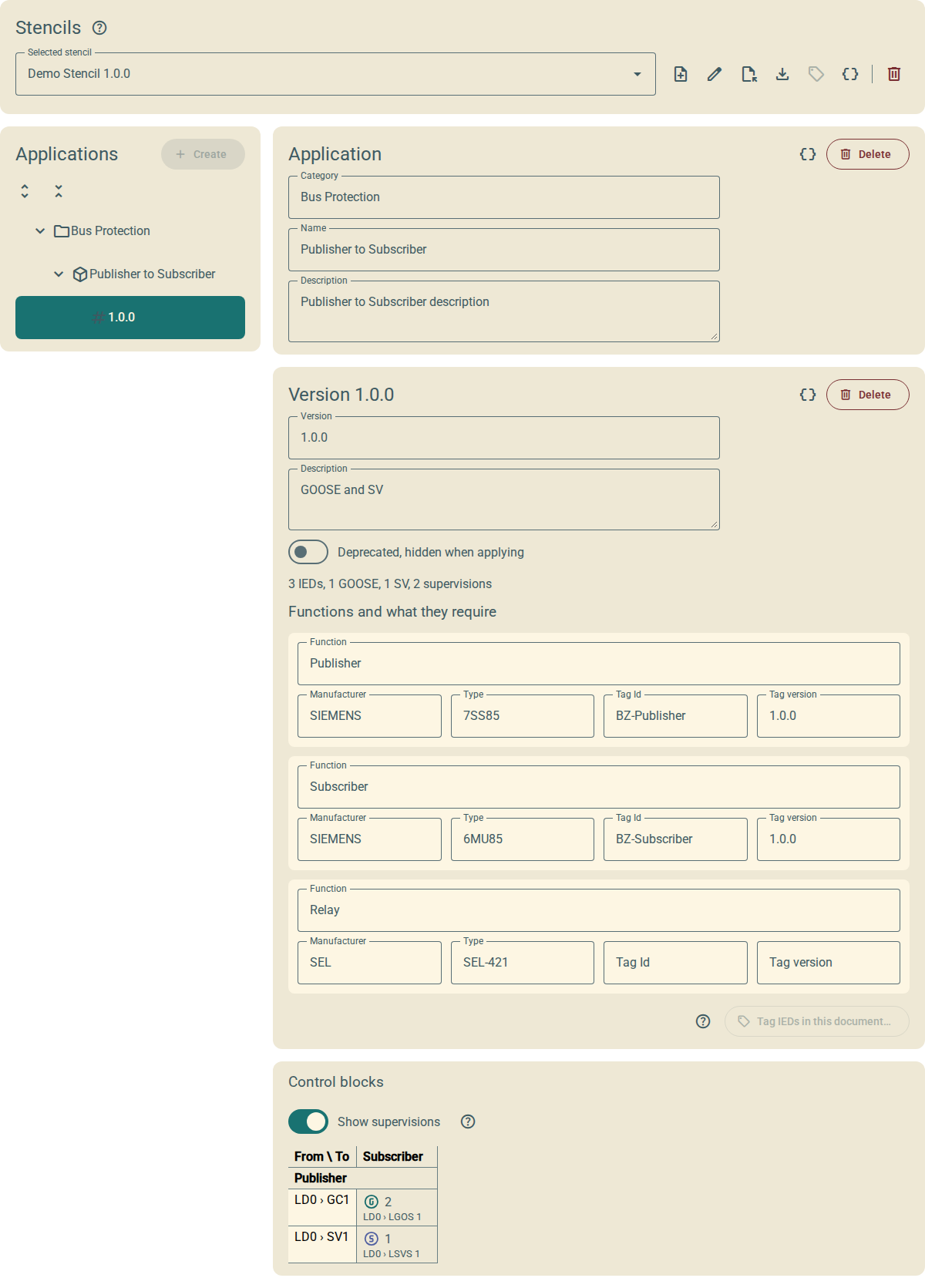
The tree shows each category as a folder. Below each category are its applications, and below each application are its versions. The tree shows the newest version first. A deprecated version shows (deprecated) after its number.
-
Click an application or a version to select it.
-
Click Expand all to open all the folders.
-
Click Collapse all to close all the folders.
-
Click Create to make a new application from the open document. Refer to Create an application from a document.
3. Change an application
-
In the tree, select the application.
-
In the Application card, change the Category, the Name or the Description.
-
Press Enter or move to the next field.
The plugin checks the value and saves it. If the value is not valid, the field shows the problem.
The Category and the Name must not be empty. Two applications in a stencil cannot have the same category and the same name.
4. Change a version
-
In the tree, select the version.
-
In the Version card, change the fields.
-
Press Enter or move to the next field.
The plugin checks the value and saves it.
You can change these fields:
- Version
-
The number of the version. It must not be empty, and the application must not have another version with this number.
- Description
-
A description of the version.
- Deprecated, hidden when applying
-
Set this switch to deprecate the version. The Apply tab does not show a deprecated version, unless you set Show deprecated.
- Function
-
The name of a function. It must not be empty, and the version must not have another function with this name.
- Manufacturer and Type
-
The manufacturer and the type of the IED that can fill the function.
- Tag Id and Tag version
-
The stencil tag that the IED must have. Clear the two fields to remove the stencil tag from the function.
The Control blocks card shows the table of control blocks of the version. Refer to Read the table of control blocks.
To change the control blocks or the subscriptions, edit the version as JSON. Refer to Edit a stencil as JSON.
5. Delete an application or a version
-
In the tree, select the application or the version.
-
In the Application card or the Version card, click Delete.
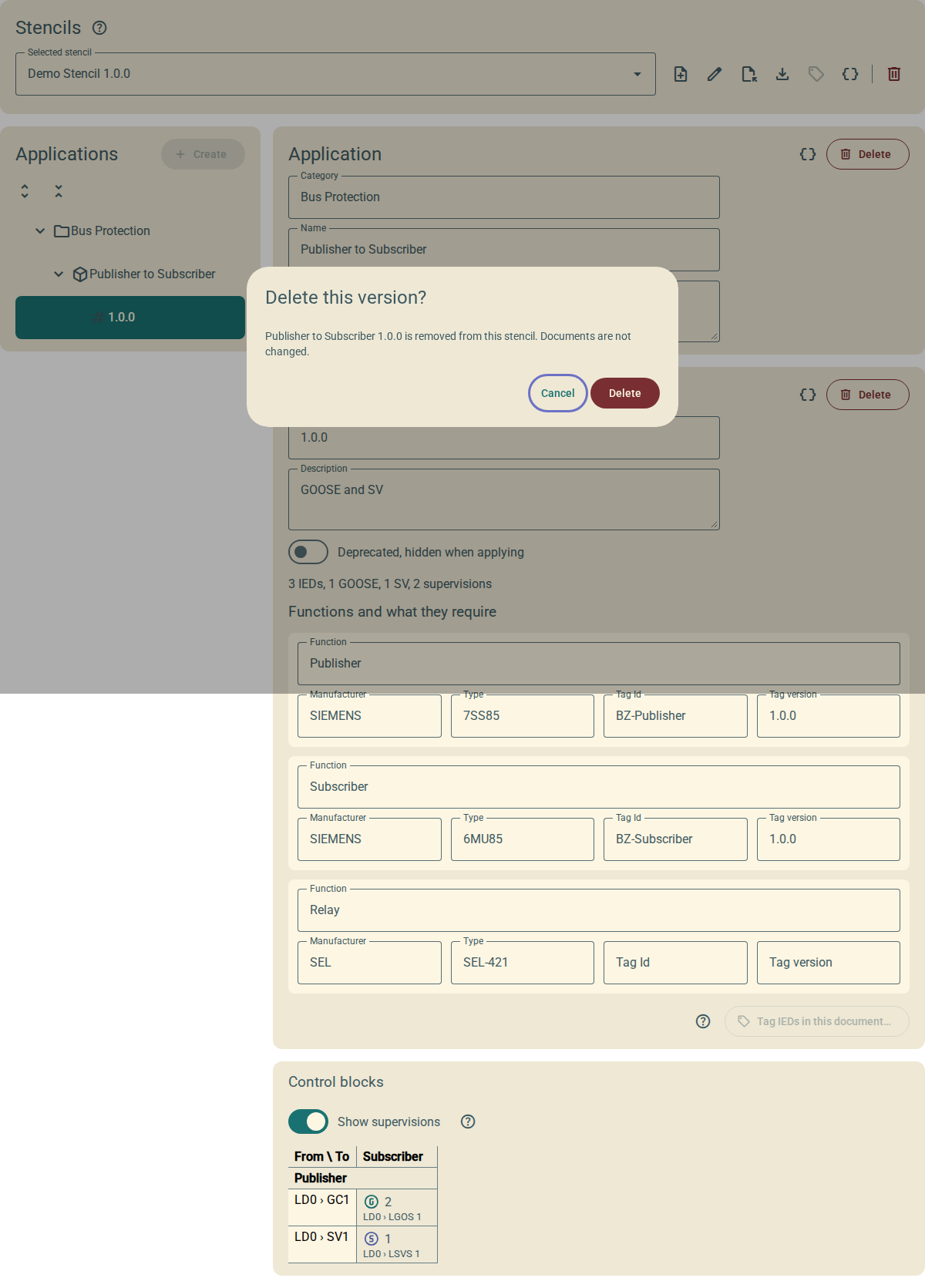
The plugin asks you to confirm.
-
Click Delete.
When you delete the last version of an application, the plugin also deletes the application.
The delete changes only the stencil. It does not change a document. You cannot undo the delete.