Create an application from a document
You make a new application from IEDs that already communicate in the open document. The plugin records the control blocks that the IEDs send to each other, the subscriptions and the supervisions. This is the capture.
The capture has four steps: Select IEDs, Select control blocks, Name the application and Review and save. The plugin adds the application to the selected stencil. The capture does not change the document.
1. Before you start
-
Open the SCL document with the configured IEDs.
-
Make sure that the subscriptions between the IEDs are in the document.
-
If IEDs of the same manufacturer and type do different jobs, add stencil tags to the IEDs. For more information, refer to Stencil tags.
-
In the Manage tab, select the stencil that gets the application.
2. Procedure
-
In the Manage tab, click Create in the Applications card.
The plugin shows the first step of the capture.
-
Select at least two IEDs that belong to the application.
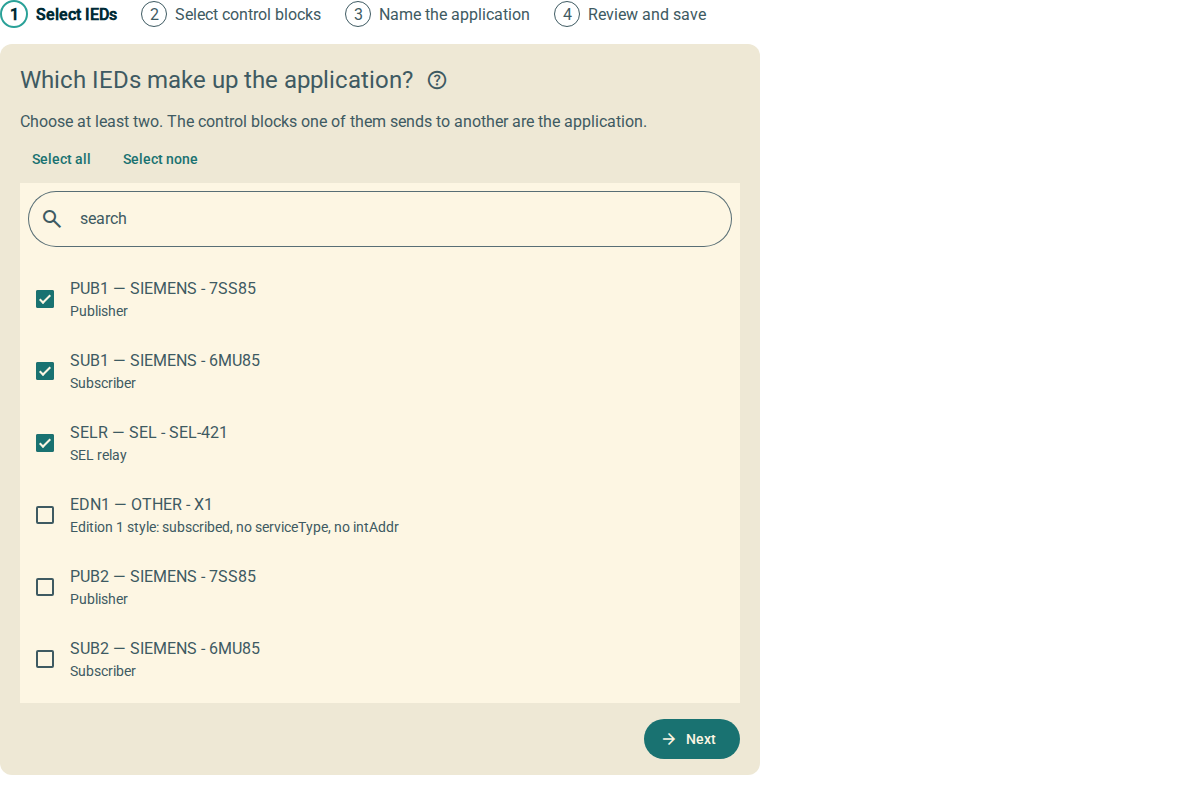 Figure 1. Select IEDs
To find an IED, type a part of its name, manufacturer, type or description in the search field. Select all and Select none change only the IEDs that the search shows.
-
Click Next.
The plugin shows the control blocks that one selected IED sends to another selected IED.
-
Clear the check box of each subscription that does not belong to the application.
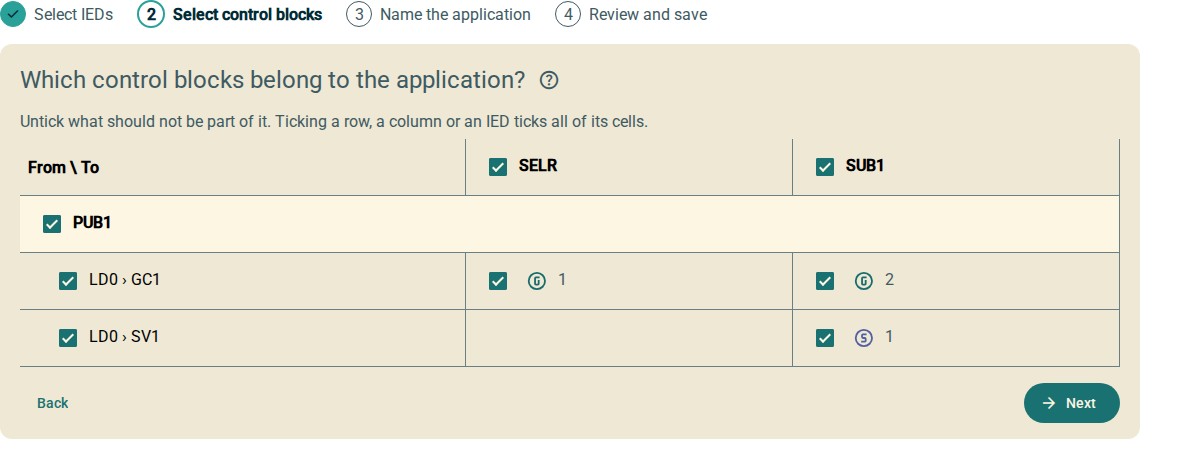 Figure 2. Select control blocks
Each cell is one control block to one subscribing IED. The check box of a column, a group or a row changes all its cells. A check box with a dash shows that only some of its cells are selected.
-
Click Next.
-
Type the Category, the Name and the Version of the application. These fields are necessary.
-
As an option, type a Description and a Version description.
-
Type a name for each function in the Function for fields.
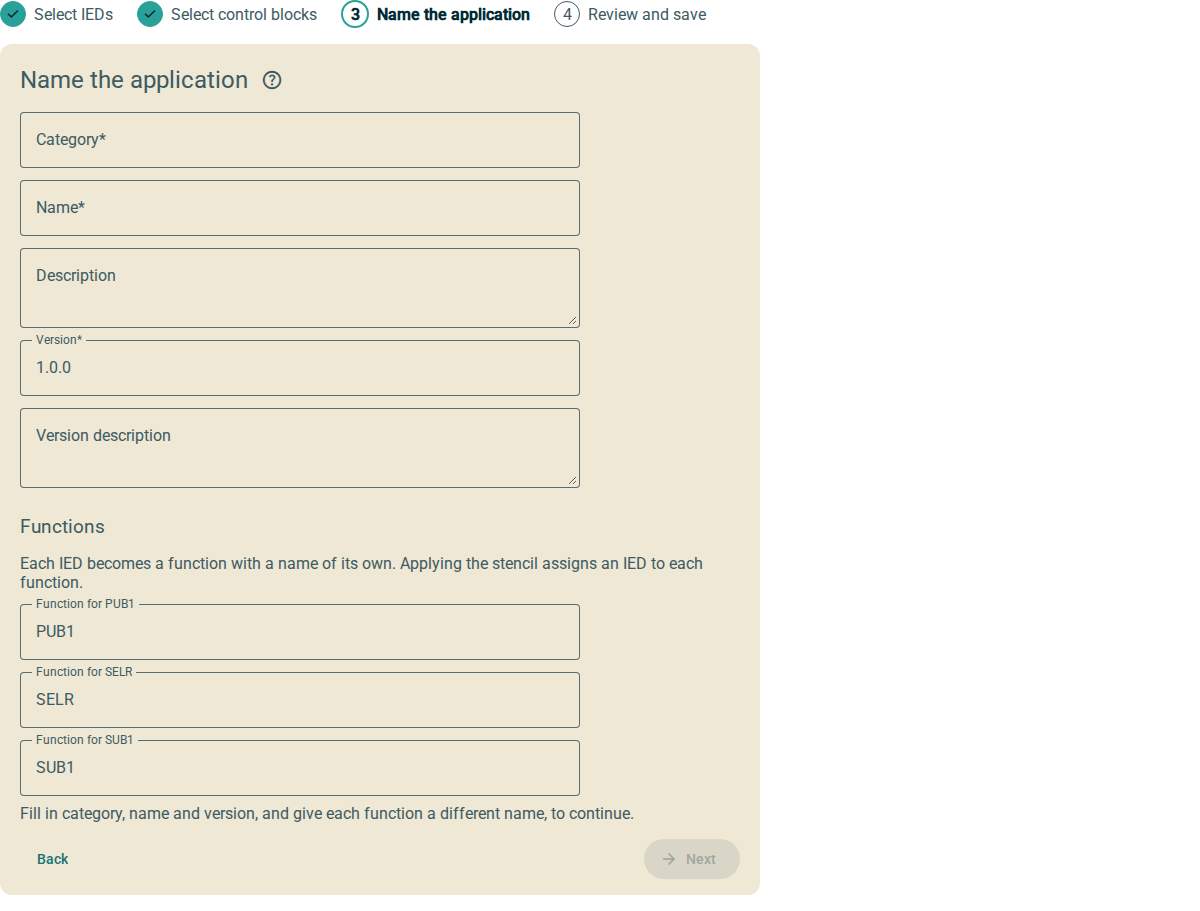 Figure 3. Name the application
Each IED becomes one function. The plugin fills in the IED name as the function name. Change it to a name that tells the role of the IED, for example Publisher or Merging unit 1. You see the function names when you apply the stencil to other IEDs. Each function must have a different name.
-
Click Next.
-
Read the review.
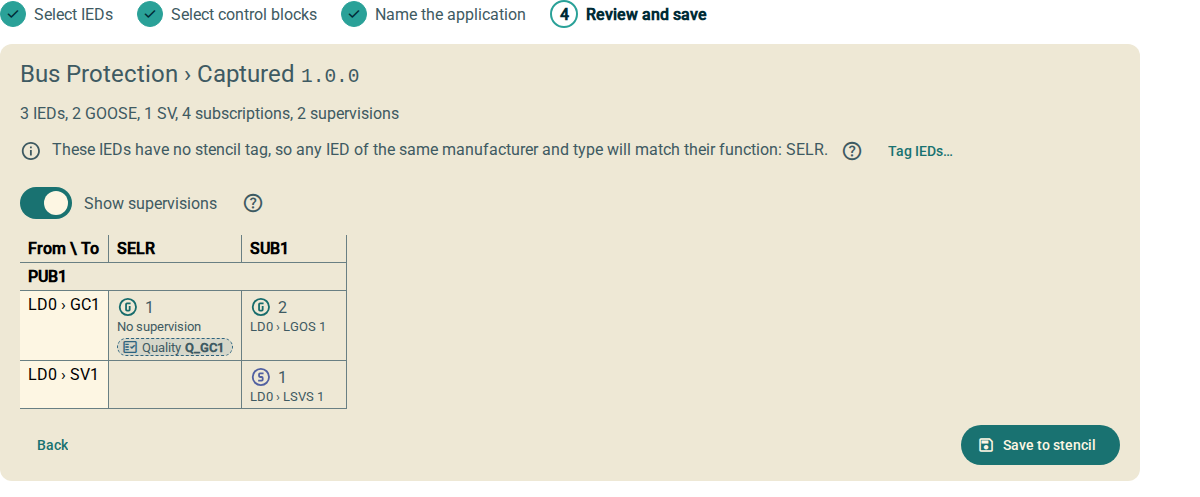 Figure 4. Review and save
 -
Click Save to stencil.
The plugin adds the application version to the selected stencil. The Saved card shows.
After you save, click Show in stencils to see the version in the tree. Click Capture another to start the capture again.
To go back to the stencils at any time, click Back to stencils. The capture keeps its progress until you open another document.
3. What the review shows
-
The counts of IEDs, GOOSE and SV control blocks, subscriptions and supervisions.
-
The IEDs that have no stencil tag. Any IED with the same manufacturer and type can fill the function of such an IED. To add stencil tags, click Tag IEDs….
-
The table of control blocks. Refer to Read the table of control blocks.
4. Replace a version
If the stencil already has this version of the application, the review shows a check box.
-
Select Version n of this application exists. Replace it.
-
Click Save to stencil.
The new version replaces the old version.
Save to stencil is not available until you select the check box.
5. What the capture records
- For each function
-
The manufacturer and the type of the IED, and its stencil tag if it has one.
- For each control block
-
The control block, the data that it sends (
FCDA) and the input of the subscriber that receives each data (ExtRef). - For each control block and subscriber
-
The supervision logical node of the subscriber that monitors the control block, if it has one.
- For SEL relays
-
The message quality input, if it is linked to the control block.
The plugin records each element by its reference in the IED, without the IED name.